Admin Tutorial
Guide for setting up and managing your Prism Pause Menu V2 directly in-game.
You can manage most of the advanced settings for Prism Pause Menu V2 directly in the game using the Admin Dashboard. This means you can see your changes instantly!
Other Settings
The Other section is where you find various tools and interaction settings that are not in the main categories.
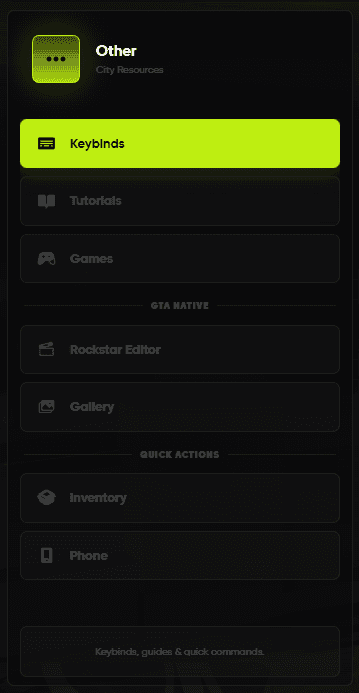
From this menu, you can open:
- Reports Management: Manage player tickets and reports.
- Tutorials Editor: Add or remove guides for your players.
- Quick Action Setup: Create fast-access command buttons.
- Keyboard Guide: Setup a visual keybinding guide.
Quick Action Setup
Inside the Other menu, you can find the Quick Action settings. This feature lets you create fast-access buttons so players can run commands without typing them in chat.
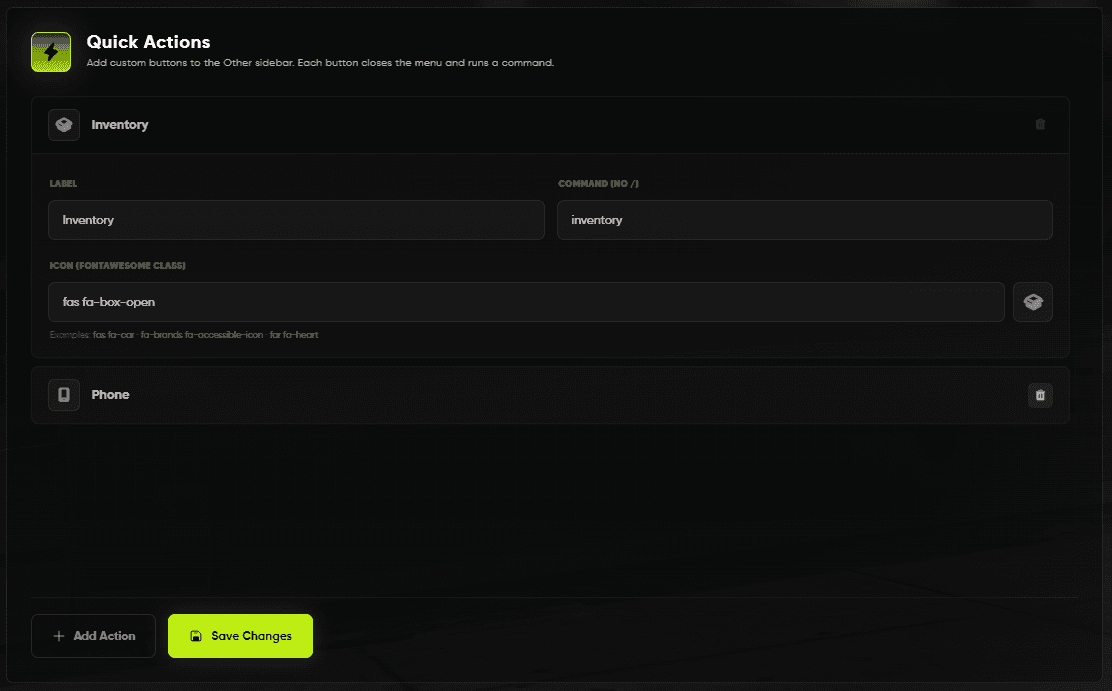
How to Setup Quick Actions
- Button Name: Type the text you want to show on the button.
- Icon Selection: Choose an icon that fits the action (e.g., a car for “Garage”).
- Command: Type the chat command it should run (e.g.,
/job).
Pro Tip: You can add up to 6 Quick Actions to keep your menu clean and helpful for your players!
Tutorials Editor
You can also find the Tutorials Editor inside the Other menu. This tool allows you to create help guides that players can read quickly from their pause menu.
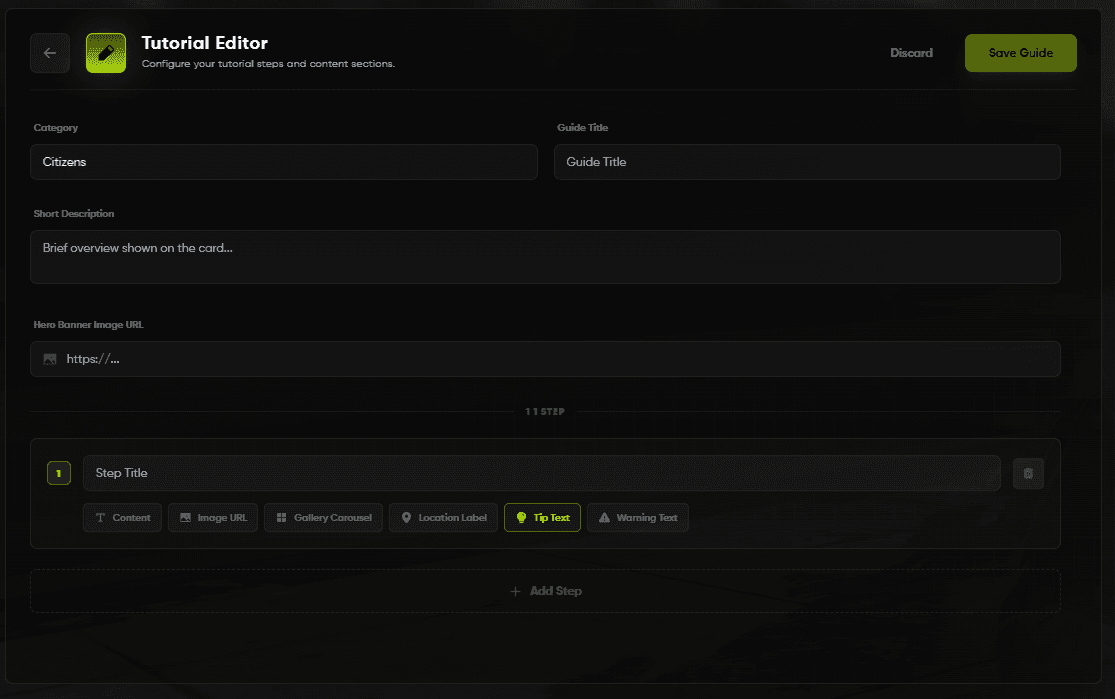
How to Add a New Tutorial
- Title: Type the name of your guide (e.g., “Server Rules”).
- Category: Select the group where this tutorial belongs.
- Tutorial Content: Write the full text or instructions for your players.
- Save: Click the checkmark icon to save and show it to everyone instantly!
Pro Tip: Use the editor to add new tutorials anytime there is a server update so your players always know what’s new!
Keyboard Guide Setup
The Keyboard section inside the Other menu lets you create a visual guide for your server’s keybindings. This helps players remember which buttons they need to press for inventory, phone, and other actions.
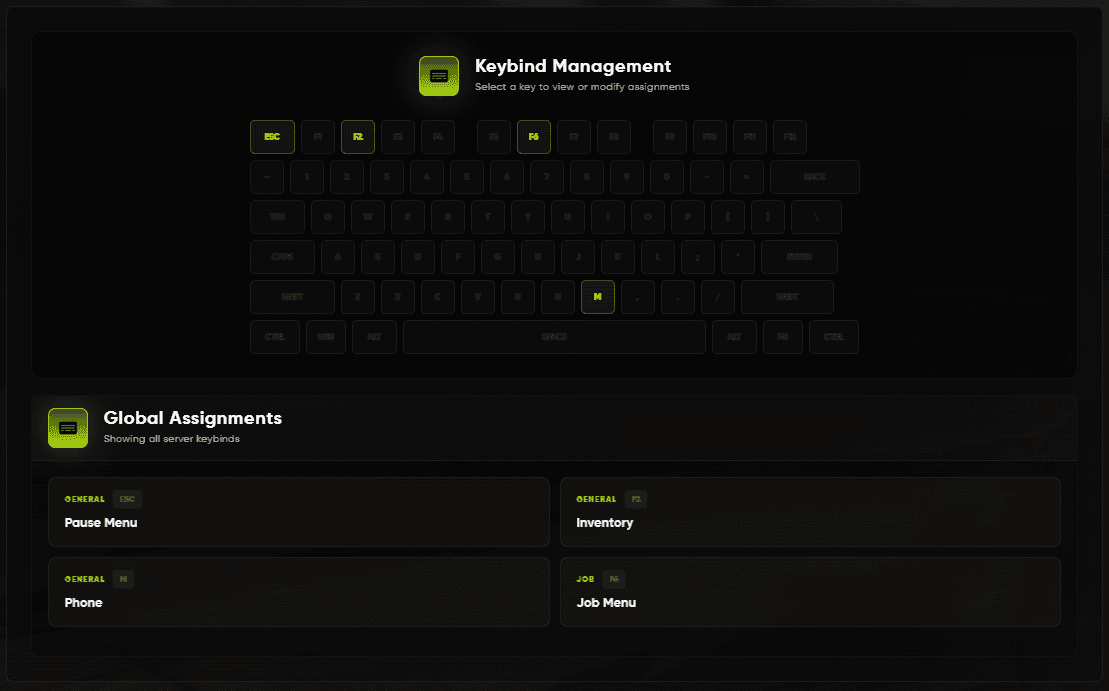
How to Setup the Keyboard Guide
- Click a Key: Click any key on the virtual keyboard that you want to set up.
- Add Info: A text box will appear. Type the name of the action for that key (e.g., “Inventory”).
- Save: Click the save icon to apply the changes for everyone in the server.
Pro Tip: You only need to set up the most important keys. This keeps the guide simple and easy for players to read!
Changelog System
The Changelog system helps you keep your players updated with the latest changes to your server. You can manage everything directly in-game.
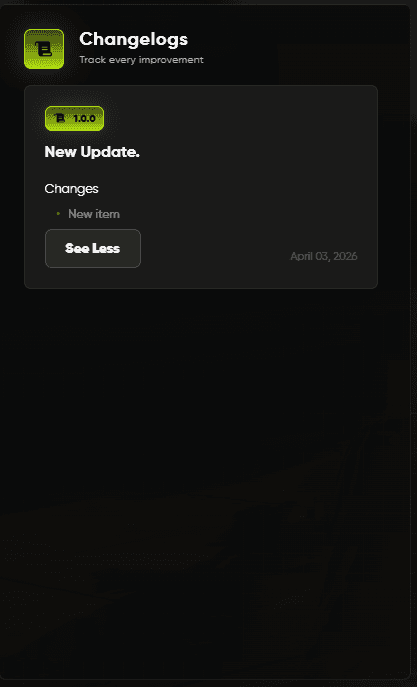
Managing Your Updates
You can edit your server’s update history using the in-game editor. Each update can have text and even a special image to show what’s new.
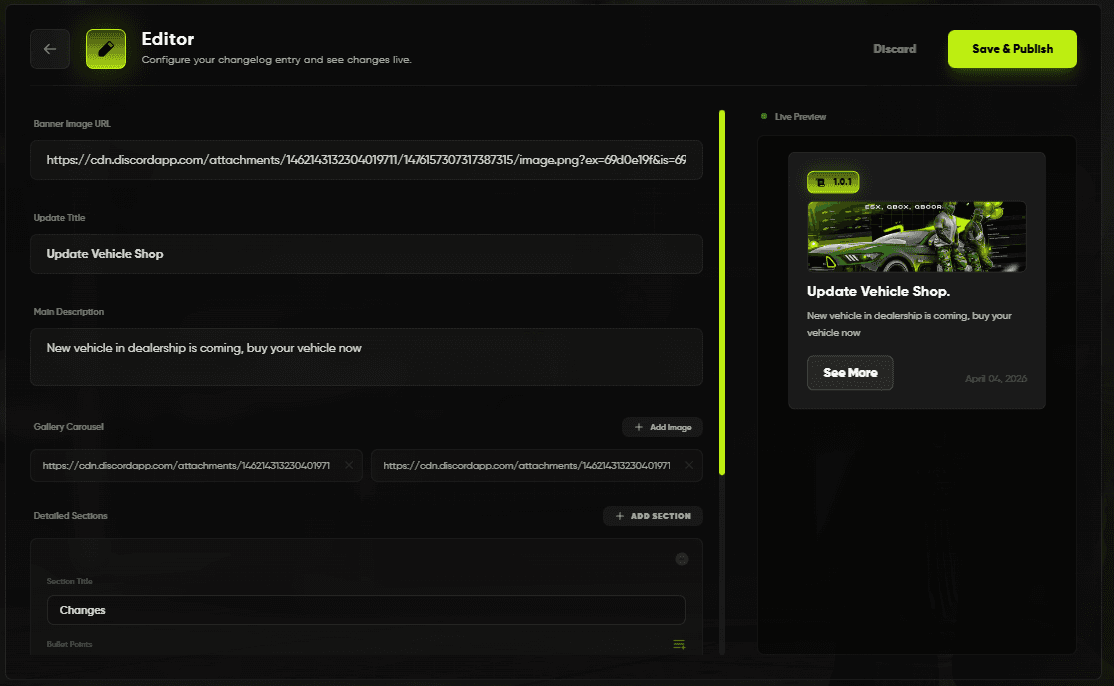
- Automatic Versioning: The version numbers are created automatically for you.
- Short Details: Write a simple list of what was added or fixed.
- Images: You can add a link to an image to make the update look great.
- Publish: Save your changes to show them in the pause menu for all players.
Discord Integration
Prism Pause Menu V2 can also send your updates to a Discord channel automatically.
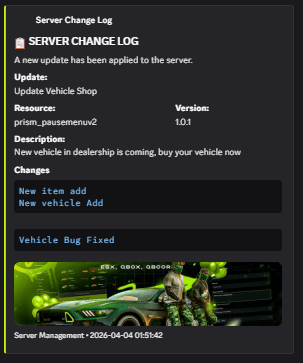
To use this, add your Discord Webhook URL to the server/serverConfig.lua file:
URLs = {
    changelog = 'YOUR_WEBHOOK_URL_HERE',
    ...
}
Pro Tip: Use the Discord integration to keep your community excited by showing them what’s new every time you update!