Installation
Setting up Tebex for prism_battlepass monetization
Tebex Integration Guide
Visit Tebex and create an account if you haven’t already.
Navigate to the Game Servers section using the sidebar menu in your Tebex dashboard.
Select the ‘Connect a game server ’ option, then choose ‘PLUGIN’ from the available connection methods and proceed.
Enter your server name and choose the all packages configuration. Apply your changes.
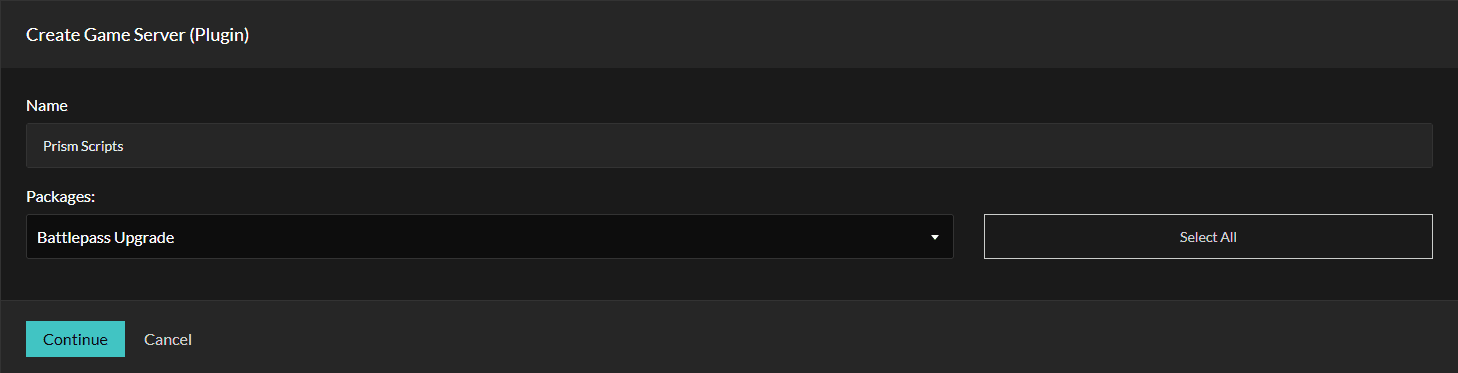
Once the setup is complete, you’ll receive a secret key. Copy this key for the next step.
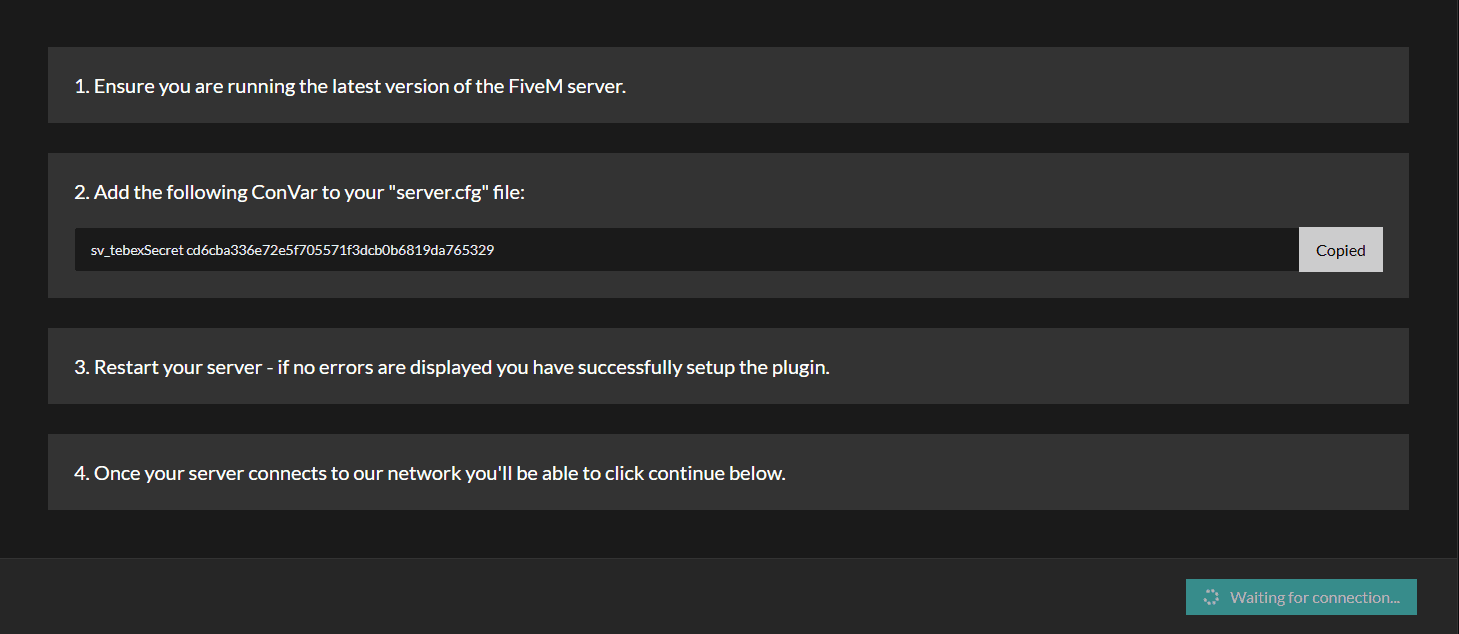
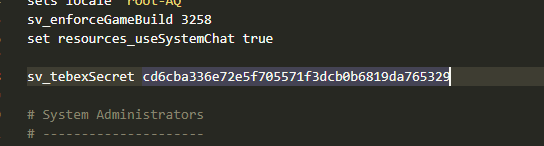
Add the secret key to your server.cfg file alongside your existing license keys. Make sure to prefix it with sv_tebexSecret as shown in the example.
Return to your Tebex dashboard and access the packages menu from the sidebar.
Use the add new button located at the top right corner, then choose packages from the dropdown options.
Configure your package details including name, pricing, description, and imagery. Then locate the Configure what your customers should receive upon purchasing this package area and select Game Server Command.
Choose the game server you’ve connected to Tebex from the Game Server dropdown menu.
Press the ‘add command’ button in the bottom right corner.
Insert the following command into the ‘Enter the command’ field.
tebexpurchaseprismpass {transaction}Locate and click the settings icon positioned on the right.
Modify the Require Player To Be Online setting to ‘Execute the command even if the player is offline’ and confirm your changes.
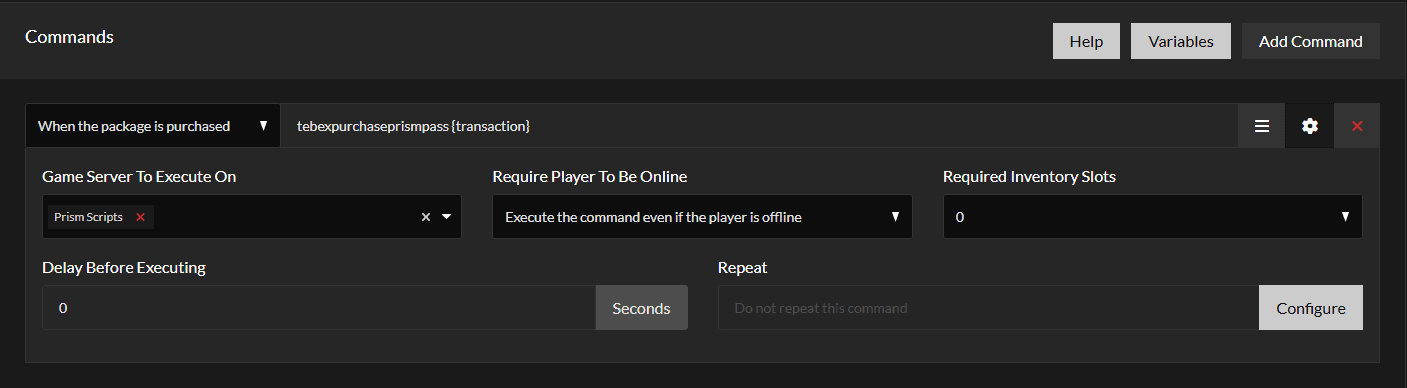
Setup complete! When players purchase your package, they’ll receive a transaction ID that can be redeemed through the in-game redemption interface.
Last updated on